
How to Install ModelSim – Intel FPGA Starter Edition on Ubuntu 22.04
Hướng dẫn cài đặt ModelSim trên Ubuntu.
How to install ModelSim on Ubuntu.
=> ModelSim – Intel FPGA Starter Edition 20.1.1.720 and Ubuntu 22.04
Step 1: Download ModelSim (LINK HERE)
Note:
You need to prepare a hard drive partition with free space of 8~10GB or more to store the downloaded installation file and install ModelSim-Intel FPGA Starter Edition.
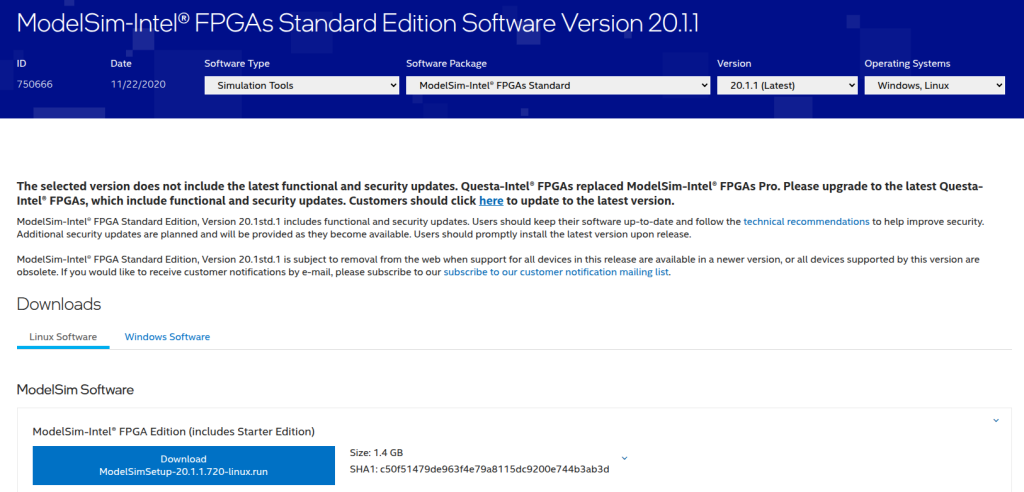
Download file have the name: ModelSimSetup-20.1.1.720-linux.run
Step 2: Make the installer executable
+ Open the folder containing the file you downloaded in Step 1 in the Terminal.
+ Run command line:
$ chmod +x ModelSimSetup-20.1.1.720-linux.run
+ Run the installer and install ModelSim:
$ ./ModelSimSetup-20.1.1.720-linux.run
Step 3: Continue
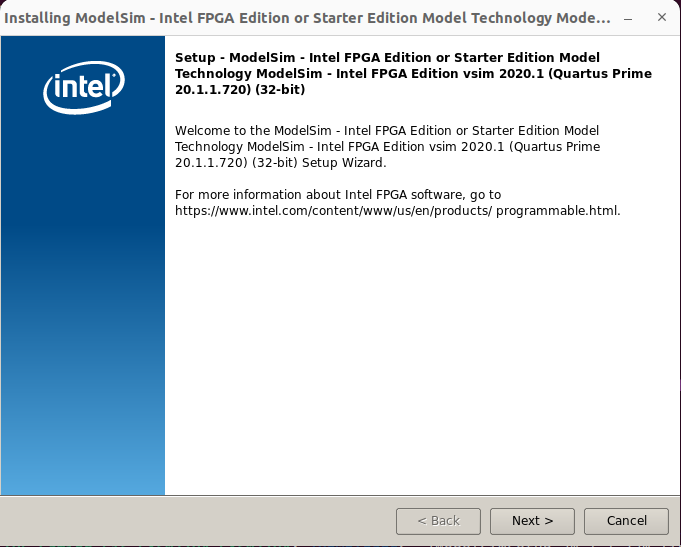
choose Next.
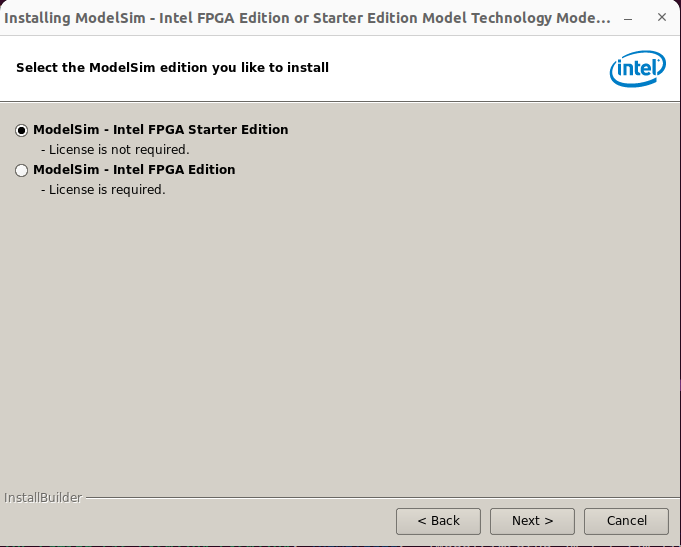
choose ModelSim-Intel FPGA Starter Edition (License is not required) > Next.
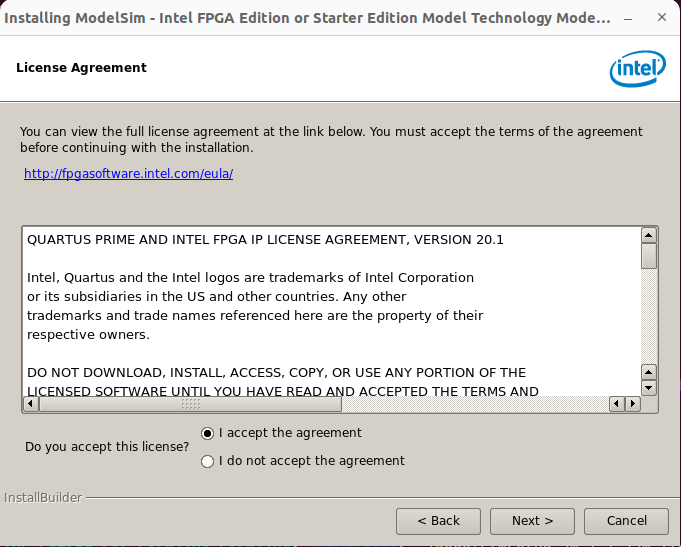
tick I accept the agreement. > Next.
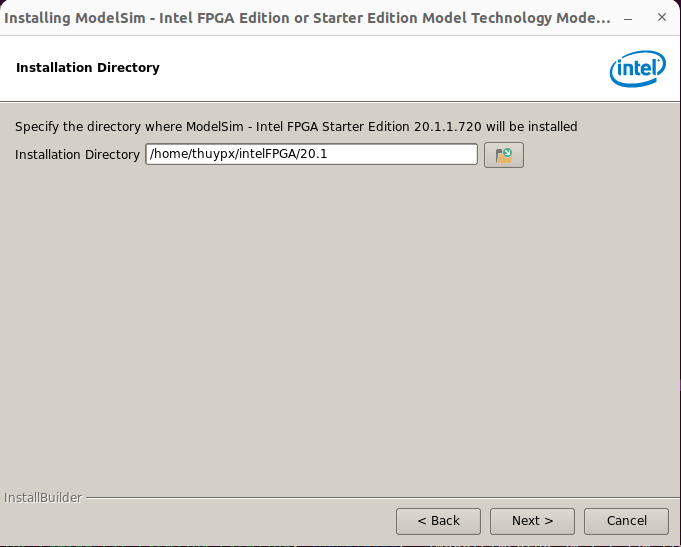
You can see the ModelSim installation path: /home/thuypx/intelFPGA/20.1, please note this path for future installation steps.
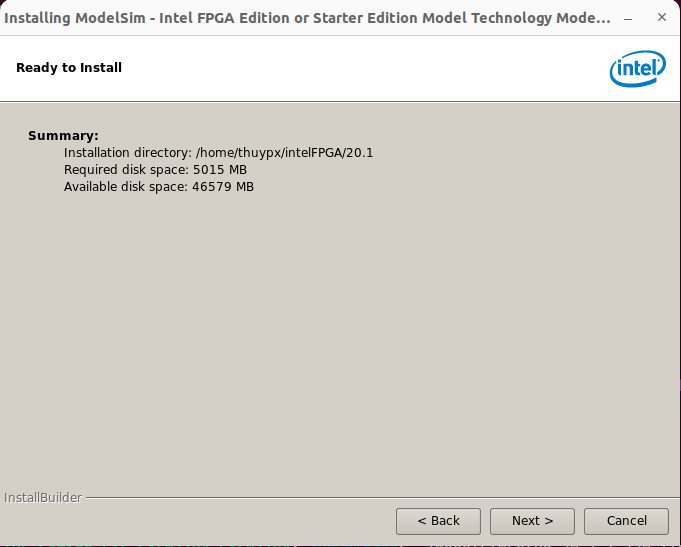
click Next.
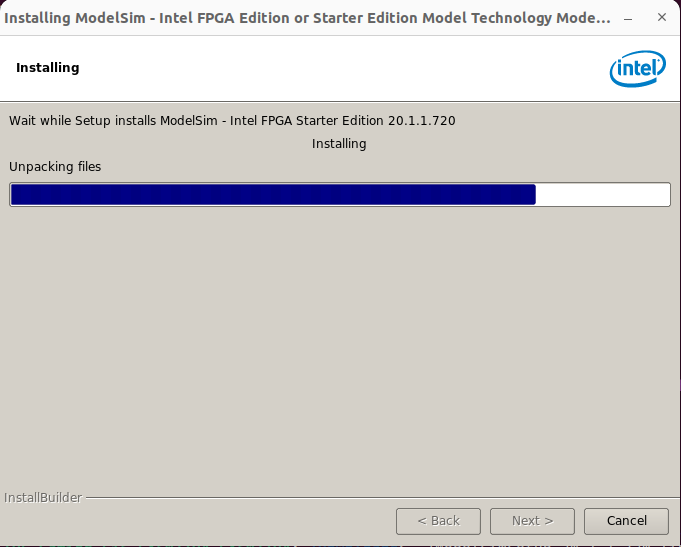
wait for installation to complete.
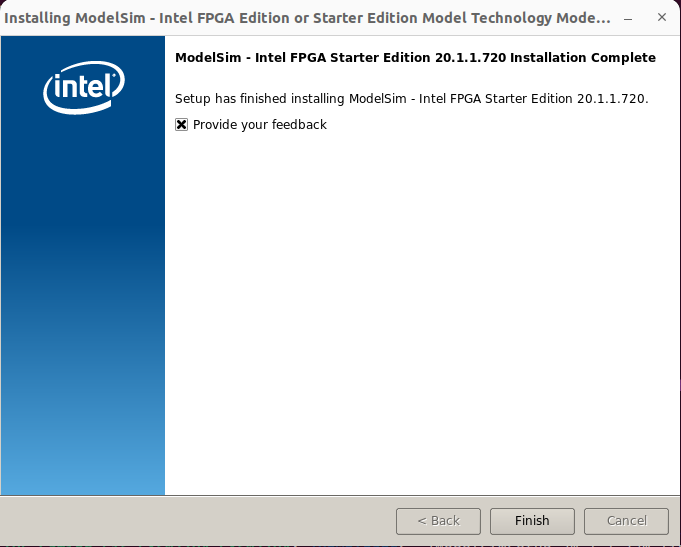
Step 4: Install requires 32-bit libraries for ModelSim Starter Edition work.
The free version of Modelsim is a 32-bit binary and therefore requires certain 32-bit libraries in order to work correctly. For Ubunutu, install the following packages:
Ref link for this step. (LINK HERE)
$ sudo dpkg --add-architecture i386
$ sudo apt-get update
$ sudo apt-get install libc6:i386 libncurses5:i386 libstdc++6:i386 lib32ncurses6 libxft2 libxft2:i386 libxext6 libxext6:i386
After installing some necessary libraries, you can run the command line below to start ModelSim.
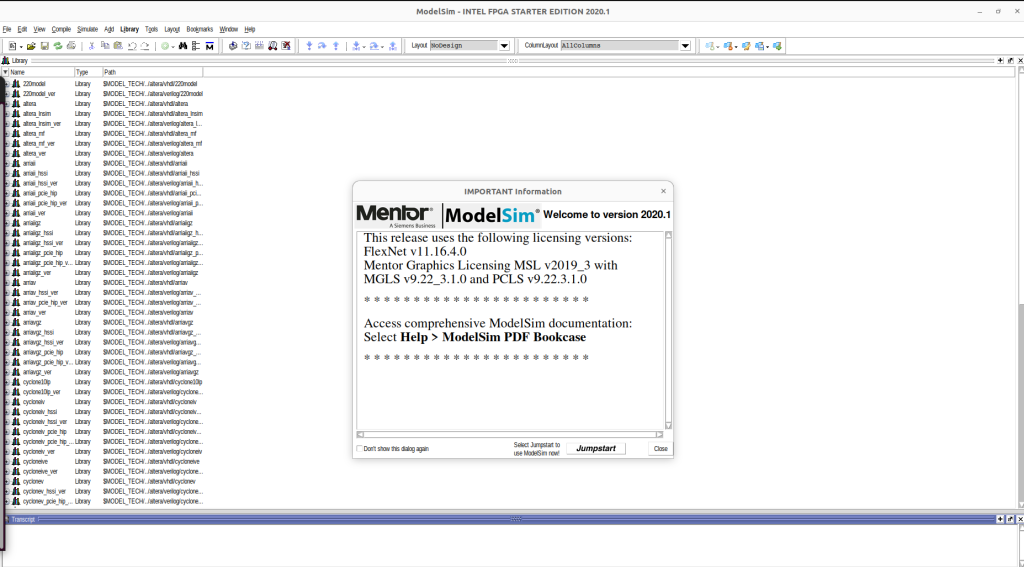
$ sudo /home/thuypx/intelFPGA/20.1/modelsim_ase/bin/vsim

ModelSim start.
Step 5: Create the Launching desktop file
=> 5.1/ Download file icon ModelSim.png (LINK HERE)
Go to /usr/share/applications folder, create folder: model_sim_20_1 and paste icon file (ModelSim.png) into this folder.
Then we have the link of the icon file as: /usr/share/applications/model_sim_20_1/ModelSim.png
=> 5.2/ Create the desktop file
$ nano ModelSim_Starter.desktop
Copy and paste the following line to desktop file.
[Desktop Entry]
Type=Application
Name=ModelSim - Intell FPGA Starter Edition 20.1.1.720
Comment=ModelSim (ModelSim - Intell FPGA Starter Edition 20.1.1.720)
Icon=/usr/share/applications/model_sim_20_1/ModelSim.png
Exec=sudo /home/thuypx/intelFPGA/20.1/modelsim_ase/bin/vsim
Terminal=true
Path=/usr/share/applications
Name[en_US]=ModelSim - Intell FPGA Starter Edition 20.1.1.720
Categories=Development;IDE;
$ sudo cp ModelSim_Starter.desktop /usr/share/applications
=> 5.3/ After each change to ModelSim_Starter.desktop, you need restart your computer for the changes to take effect.

Nước lá Tía tô

Vải Thiều Ngâm Đường
Có thể bạn cũng thích

Tiểu thuyết Búp sen Xanh – nhà văn Sơn Tùng
About Quartus Prime and How to install Quartus Prime Lite 23.1.1std on Ubuntu 22.04